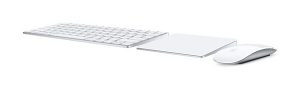
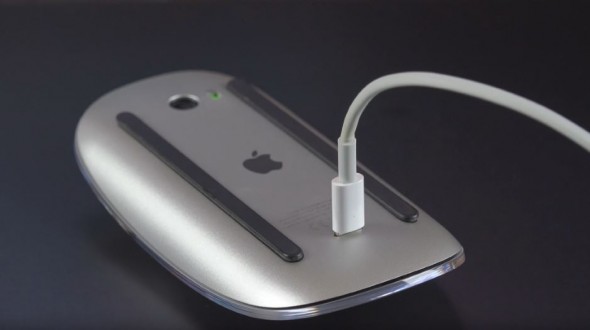
 The Magic Keyboard and Magic Mouse 2 have been out since Oct 2015 replacing the similar designed mouse and a more flatter triangle shaped design keyboard with a rechargeable battery instead of the AA batteries. In theory gone now are the days of having a issue with a keyboard or mouse losing connection to the mac. Now you just plug in the lighting cable and away you go, well the keyboard anyhow, the mouse is a bit difficult to work with while its plugged in for regarding. Continue reading “Magic Mouse 2 and Magic keyboard”
Magic Mouse 2 and Magic keyboard

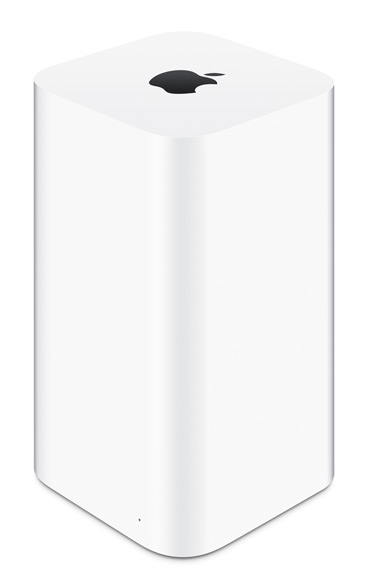
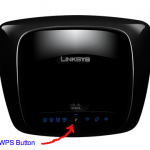 The machines talk to each other and less than a minute the printer is now on the network.
 This question has been around for a number of years. There are lots of remote programs out there here are the top few I find work very nice with your mac.
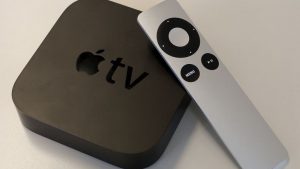 Recently came across an issue registering a Apple TV 3 inside a sky broadband network. Seems one of the ports is not open thus allowing the Apple device register over the internet. This issue materialised in the last few weeks with a number of clients with their new Apple TV.