Creating a local backup of Dropbox means downloading all your Dropbox files to your computer or another local storage device so that you have access to them even if Dropbox is unavailable. Here’s how to do it:
Continue reading “How to Backup your Dropbox account locally”Video on how to backup your Dropbox for data and disaster recovery
In this video we are looking at how to create a local increment backup of your online data and how to counter data disaster recovery options using some simple hardware tools.
Continue reading “Video on how to backup your Dropbox for data and disaster recovery”
How to backup Dropbox locally to help prevent online data breach and data recovery
We are looking at how to create a local increment backup of your online dropbox account using a Mac and some external data drives.
How to format a Windows Drive to Mac in Disk Utility
If you have a Windows hard drive that needs formatting for a Mac then this short video will show you how to do that. Before watching the video you will need to take the hard drive out of the Windows machine and place it in a hard drive caddy plugged into your Mac.
How to setup Time Machine Short
Time Machine unable to backup
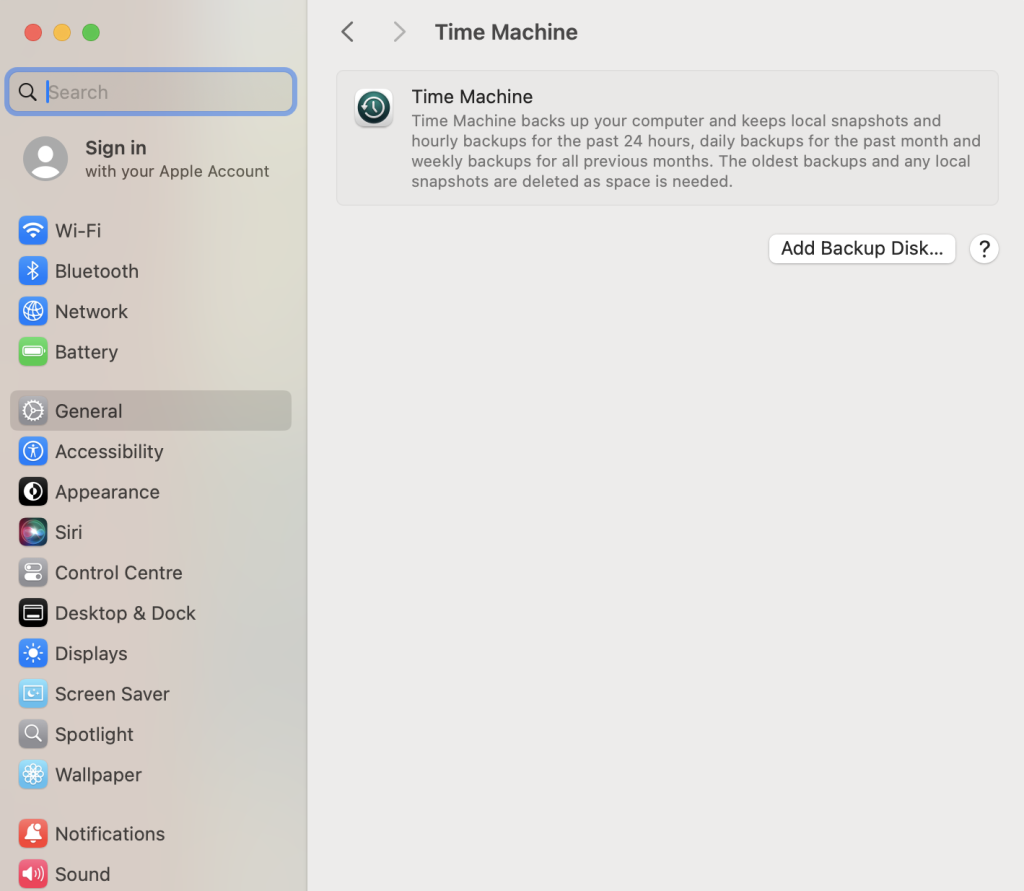
Time Machine is macOS’s built-in backup tool that automatically saves copies of your files, apps, and system settings. It allows you to restore lost files or roll back your Mac to a previous state. 9 out of 10 times this works smoothly with key features listed below when it works its brilliant. However the 10th time it not working you have to go through a sequence to trouble shoot why its not backing up.
Key Features of Time Machine
✅ Automatic Backups – Backs up your Mac hourly (last 24 hours), daily (last month), and weekly (older backups).
✅ Incremental Backups – Saves only new or changed files, not everything every time.
✅ Easy File Recovery – Lets you restore individual files or your entire system.
✅ Mac Migration – Use it to transfer your data to a new Mac.
✅ Works with External & Network Drives – Supports USB, Thunderbolt, NAS, and Time Capsule.
Other methods to make a complete Backup of your Mac when Time Machine does not work
So you have to make a backup of your Mac and included all the apps, profiles etc. Your options are really Time Machine backup or a clone software. We take it you have a hard rive to use as the backup of the said device you require a backup of. The answer is also a little bit more complicated as what state the Mac is in, is the machine running an encrypted drive, is the drive removable, does the Mac boot etc. All valid questions.
For the drive removal option you can take out the drive place in an adaptor and plug into another machine and run one of the backup software solutions to get your backup. Sound simple and it is if you can get access to the drive hardware easily have the correct adapter to plug the drive in to a spare machine to do the backup.

Backup your machine

Your Hard Drive will fail, even the SSD as for a time frame anything from the warranty of the machine to 10 years later. I personally have hard drives which have been working now coming on to 12 years. (I hope I have not jinxed that) With that vital piece of information you should be looking at how you backup your computer whether its a laptop or a iPad. Now we break down what are the options.